Expense claims without chat messages full of photos
Board members submit their expenses with the receipt attached. The treasurer approves a whole pile in one go and pays everything out with a single bank file, however many claims there are.
Why this usually goes wrong
Expense claims arrive as a chat message with a crooked photo, an email without an amount, or a note after the meeting. The treasurer keeps track in their head or in a separate list, and by the end of the year it no longer matches the bank.
In Ledenboek the person claiming submits it themselves, with amount, description and the receipt as an attachment. After that it follows a fixed route: draft, submitted, approved or rejected, and paid. You always see where something stands.
How it works
-
1
The member submits
Under Expense claims a board member fills in the amount and description, or chooses mileage, and adds a photo or PDF of the receipt. An account number is required, because that is where the money goes. As long as it is a draft, they can still change it.
-
2
You review
The treasurer gets a notification and sees everything waiting for them under Process, with the receipt attached. Tick what is in order and approve it in one go; what is not right you reject with a reason, so the person claiming knows what needs to happen. A claim that was left as a draft can be handled this way too.
-
3
Paying out
Under To pay you download the bank file: a SEPA credit transfer file with one transfer per person, which you import at your bank as a batch payment. Twenty claims from eight people are then eight transfers, signed in one go instead of retyped twenty times. Then you mark them as paid, and each claimant gets an email about it.
-
4
Finding them again
All expense claims are kept with their receipt and status, and can be filtered by status and person.
Lots of claims? This saves the most time
A club with many volunteers, trainers or committees receives dozens of receipts every month. Approving and paying then work per pile instead of per item: tick, approve, download the bank file and import it at your bank.
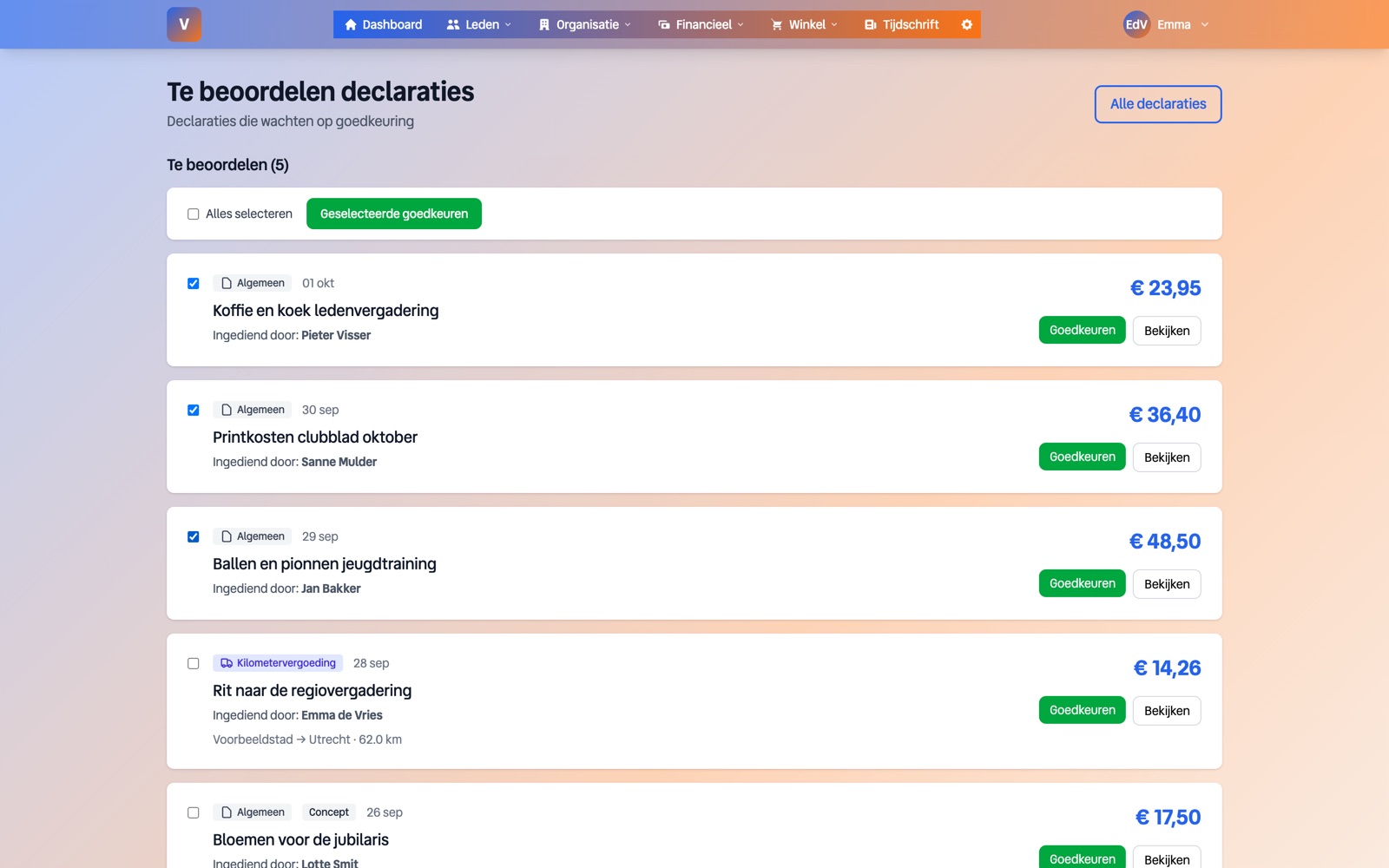
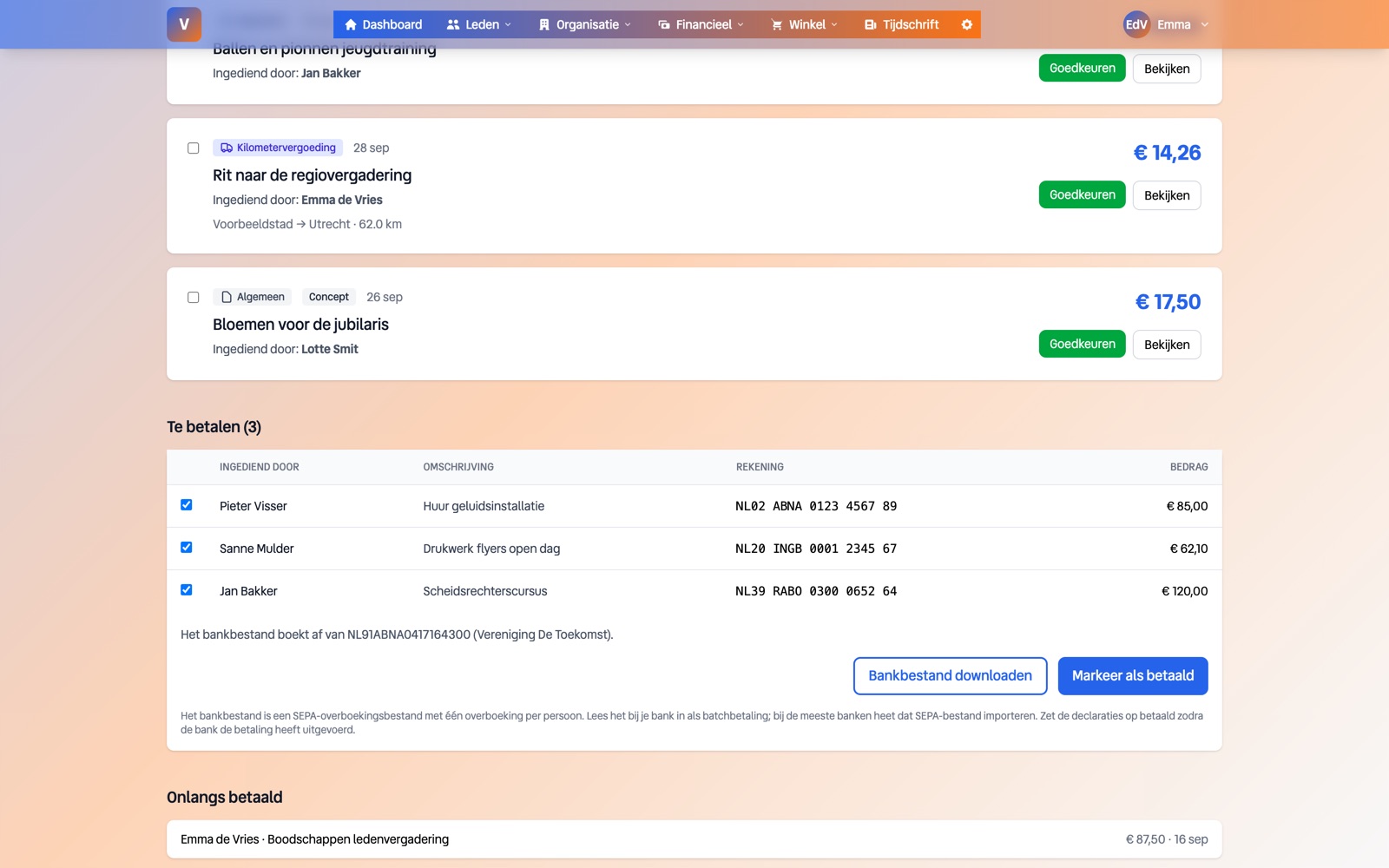
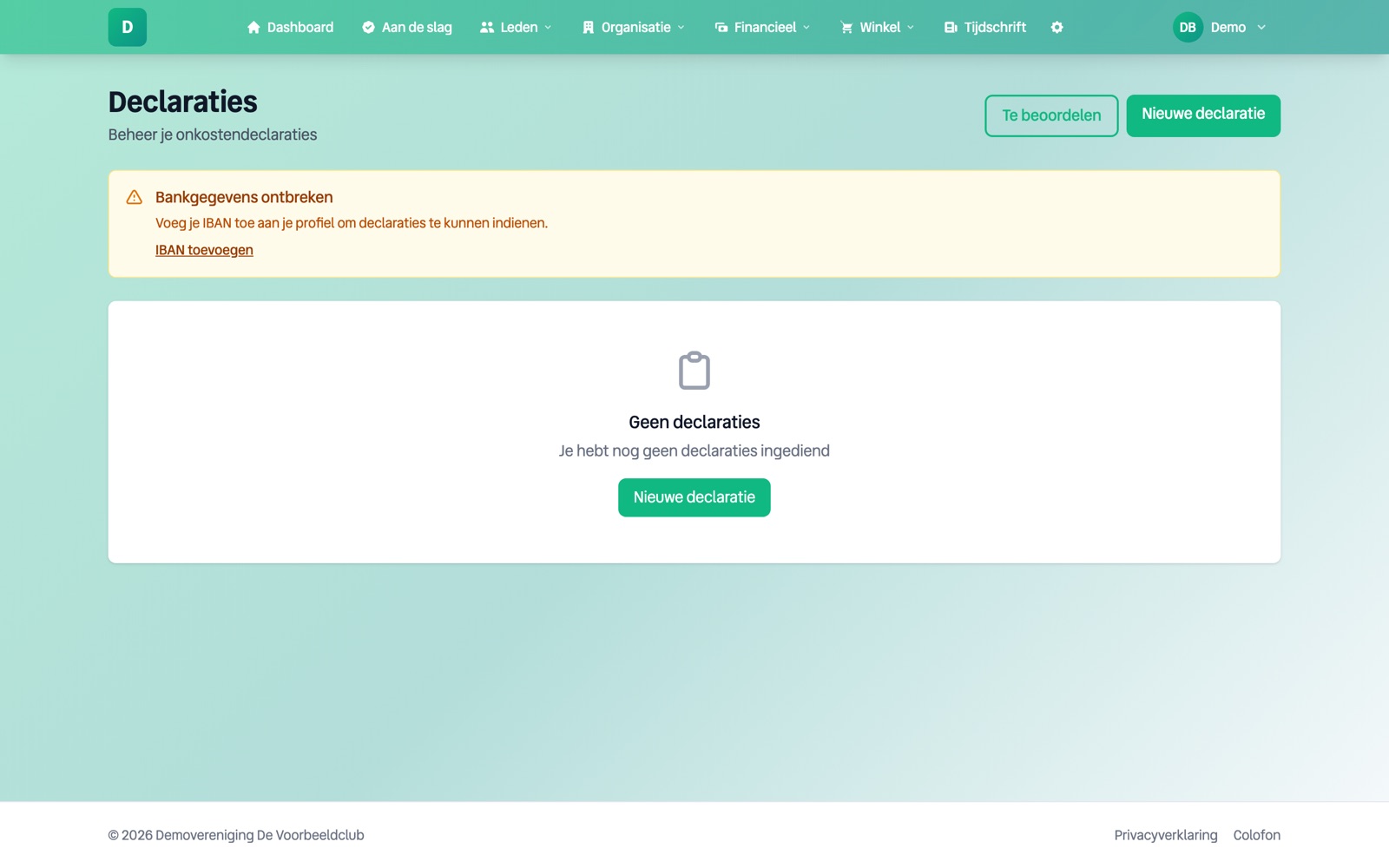
What the expense claims overview looks like
What it does not do
- •Ledenboek does not make the payment itself. It creates the bank file; uploading and authorising it happens at your own bank.
- •For mileage, Ledenboek uses one fixed rate per association, €0.23 per kilometre by default. Different rates per person or per trip are not supported.
- •Receipts are stored as they were submitted. No text is read from the photo to fill in the amount automatically.
Frequently asked questions
Can ordinary members submit expense claims too, or only board members?
Board members. Anyone with a board role can submit an expense claim; ordinary members cannot do so through the member portal yet.
Does the audit committee see the receipts?
The expense claims themselves are not in the audit committee area. The payment is: it appears as a bank transaction on the statement, and that is where the audit committee adds its comments.
Can I reject an expense claim with a reason?
Yes. The person claiming sees the reason and can adjust the claim and submit it again.